What ReelBolt does
Features
Every job a video team does, done by AI agents and reviewed before it reaches you. Then open it in the editor and make it yours.
Part 1 of 5
Make the video
A production crew that never books out
A good video takes a dozen jobs: understanding the material, finding the story, writing, picking shots, designing titles, grading and choosing the music. ReelBolt gives you a specialist agent for each one, and they work on your video at the same time.
- A researcher that works out what your material is about and who it is for
- A scriptwriter and a director that turn that into a story worth watching
- An editor, a motion designer, a colorist and a sound designer that finish it
- A reviewer that scores the result and sends weak drafts back
Upload the raw take, get back the finished cut
Record it in one go, mistakes and all. ReelBolt finds where you paused, restarted or lost the thread, keeps the moments that carry the story, and cuts on full sentences, not mid-word.
- Dead air, stumbles and false starts removed automatically
- The strongest take kept when you recorded the same thing twice
- Speech transcribed, so the edit follows what was actually said
- Clean transitions and fades in and out, done for you
Nothing mediocre reaches your inbox
A reviewer agent checks every draft against the brief: does it hold together, does it say what it set out to say, does the pacing work. Anything that falls short goes back for another pass, so the first version you see has already been reviewed.
- Every draft scored against your brief
- Weak drafts sent back automatically
- You review a version that already passed, then change what you like in the editor
One video, then the next one in a click
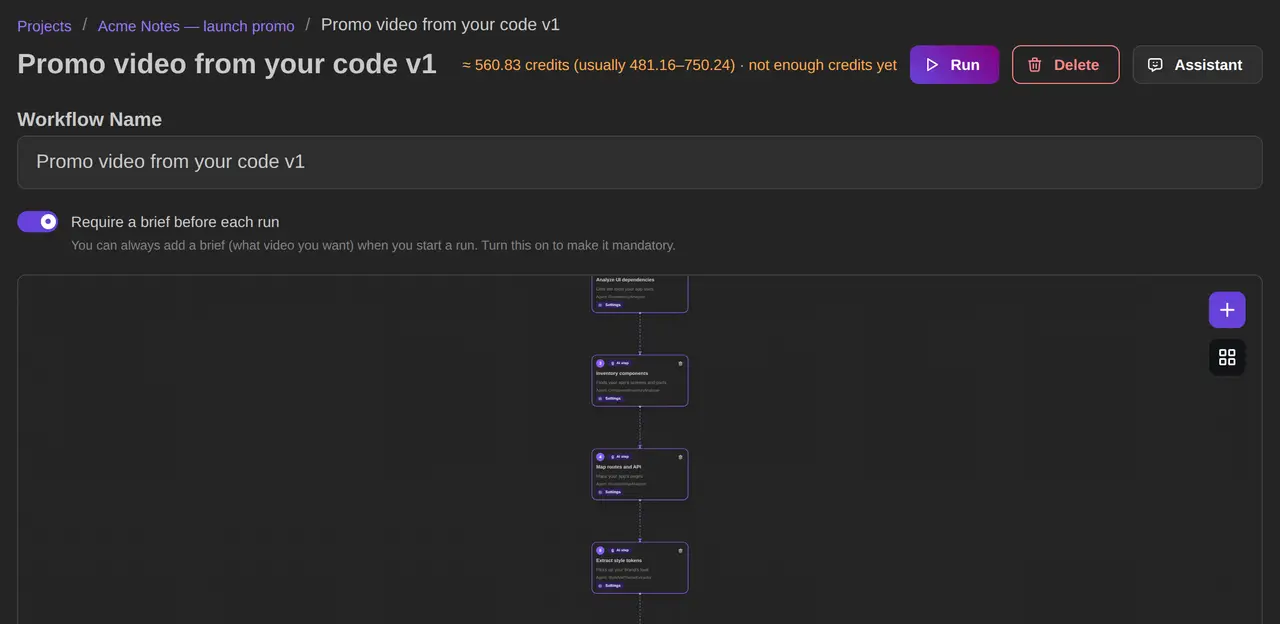
The way your video gets made is saved as a reusable recipe. Film the next batch of clips, or ship the next release, run it again, and the new video follows the same structure and tone with the new content.
- Save the steps that made a video you liked and reuse them
- Adjust one stage without rebuilding the whole thing
- Make several cuts at once: a long one for the site, a vertical one for social
Part 2 of 5
Edit and design
Open the cut and change anything
Every finished video opens as an editable timeline, or you can start from a blank one. Change what the agents did, keep what they got right, and render again.
- Cut, trim and move clips, add markers, and undo anything, with autosave and version history you can restore
- Edit from the transcript, remove silences, and change speed, reverse or freeze a frame
- Keyframes, transitions, color grading with scopes, masks, keys, corner pins, effects and title templates
- An audio mixer that ducks the music under the voice, subtitles, and voiceover you record yourself
- Comments from reviewers, a review page that works on a phone, and an offline mode that catches up when you reconnect
Working with another editor? Export the edit as OTIO, EDL or Final Cut XML, and subtitles as SRT or VTT. The Final Cut export carries the cut and the clips; titles, grades and effects stay in ReelBolt.
Want a second opinion? Assist suggests a re-cut, graphics, a grade, sound effects or a review note, and you accept or reject each one. Suggestions use credits.
Thumbnails and stills, edited in layers
Make the thumbnail, the cover image or the social still in the same place you made the video. Every change sits on its own layer, so your original image is never touched.
- Cut out a subject, remove or replace the background, and erase and fill
- Describe the change in words, expand the frame, upscale and relight
- Create a new picture from a description, then add text
- Export PNG, JPEG or a layered PSD
The AI tools in the picture editor use credits. Layers, text and export do not.
Describe the graphic, get it drawn
Ask for a title, a badge, a price tag, an arrow or a big number, and an AI designer draws it on a transparent layer with your exact text in your brand colors and fonts. Ask for "bolder" and it revises.
- Exact text, spelled the way you typed it
- Your brand colors and fonts; a brand font that isn’t available is matched to the closest installed one
- Each revision is a new layer, and the previous version is kept hidden in case you want it back
- Takes minutes, with progress and an estimate before it starts
- If the designer fails, the credits come back
Titles, captions, color and sound that look designed
Lower thirds, headline cards and callouts that point at what you just mentioned are what separate a polished video from a screen recording. They are timed to what is being said and placed where they don’t cover anything important.
- Lower thirds, titles and callouts timed to the narration
- Color grading across the whole video for a consistent look
- Background music and sound effects mixed under the voice
- Karaoke, subtitle and punch captions
Built from your brand, not a template
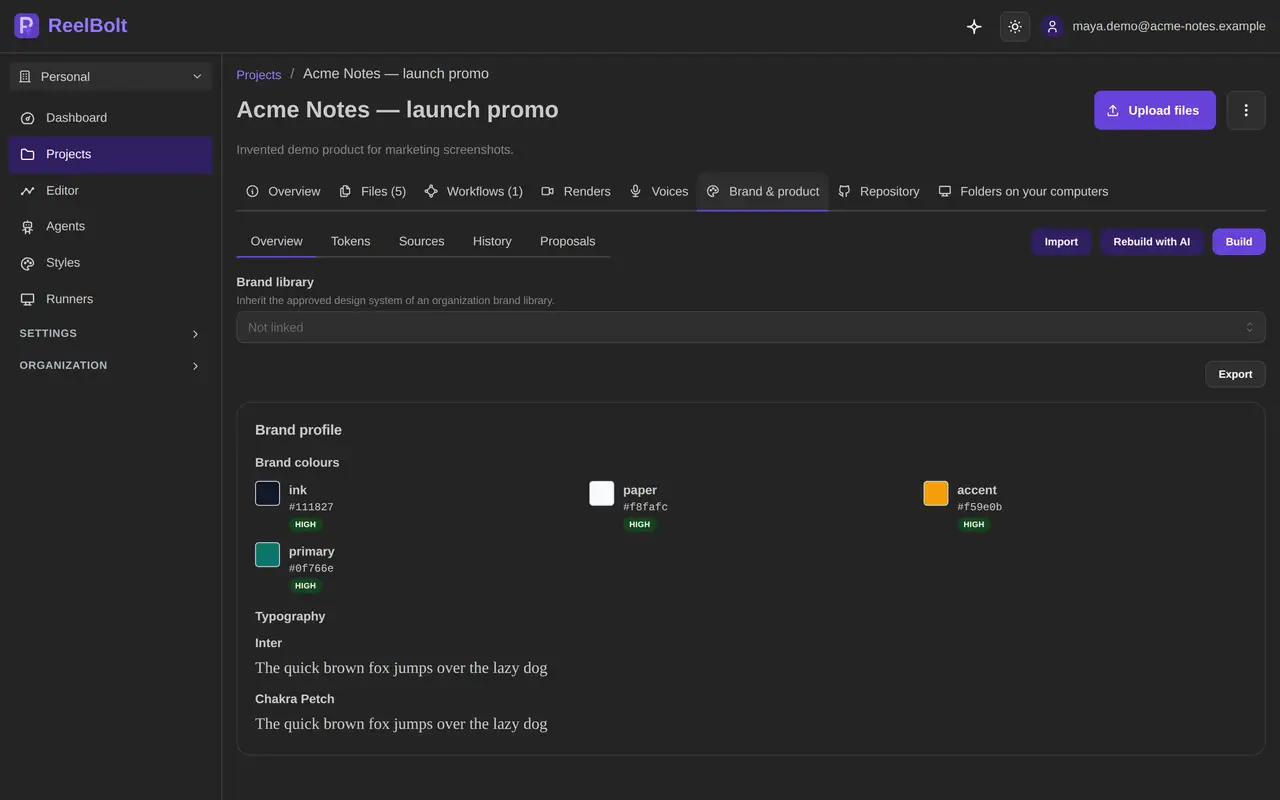
ReelBolt keeps a brand kit for each project, with your colors, type and voice, and builds every video from it. A shared brand library keeps every project in the workspace on the same brand.
- Import design tokens, CSS and Tailwind, DESIGN.md, shadcn or Storybook themes, design-tool exports, a brand PDF, or Figma variables where enabled
- Export your brand as design tokens, CSS, Tailwind, DESIGN.md or JSON
- Projects inherit the workspace library, and values you lock always win
- ReelBolt watches your sources and proposes changes when they drift, and you approve or reject each one
- Version history, and every run records which brand version it used
Importing, exporting and drift checks are free. If the files leave gaps, AI can fill them after you confirm the estimate.
Your own video on every screen in the shot
Film a phone, a laptop or a monitor showing a green, blue or magenta screen, and ReelBolt fills it with your own video or animation. The insert follows the screen as the camera or the device moves.
- Tracks moving screens, curved surfaces and several screens in one shot
- Keeps the edges and reflections of the real device
- Your own recording or animation, placed on the screen
- Shots it can’t track with confidence are left alone instead of being covered badly
Blur what should not be in the shot
Real footage has things you can’t publish: a license plate behind the presenter, a visitor badge, a screen showing a customer’s data. Name what to look for, and ReelBolt finds it, follows it as the camera moves, and blurs, pixelates or fills it.
- Describe the object in plain words; you don’t draw masks by hand
- Followed through camera moves, zooms and tilts
- Blurred, pixelated or filled, your choice
- Review the result before you publish; automatic tracking can miss a frame

Part 3 of 5
Voice and b-roll
A voice to carry the story
Not every product video has someone talking on camera. ReelBolt writes narration to fit the cut, speaks it in the voice you choose, and mixes it under the picture with the music and dialogue.
- Narration written to fit the edit, or your own lines spoken word for word
- A stock voice, or a cloned voice of a named speaker who has recorded a consent statement
- Consent can be revoked and the voice deleted at any time; cloned voices are kept for up to two years
- Mixed under the picture with the music and dialogue
Fix a line or change the language without a reshoot
A flubbed line no longer means booking the presenter again, and a new market no longer means a new video. Pickups and dubs use the consented cloned voice.
- Pickups re-record a flubbed line in the speaker’s consented cloned voice
- Dubs translate the narration and replace the dialogue
- The mouth movement on camera is not changed, so dubs suit narration and off-camera voice best
B-roll you never had to shoot, on a budget you set
A talking-head demo needs something to cut away to. A shot director reads your edit and plans short clips, such as a cutaway, a cold open, an end card or a bridge between two scenes, and they are generated and placed in the cut.
- Cutaways, cold opens, end cards, scene bridges and screen content planned from your actual edit
- A spending cap per run and a daily budget, checked before anything is generated
- Several takes per shot, and the dailies room keeps the best one
- On a re-run, reuse the clips you already have or generate new ones
Generated video is included on Pro, Team and Enterprise and uses credits. The estimate shows the most it can cost before you start.
More than one opinion on the big calls
In a room, several AI specialists work on one decision and a director chooses what to keep. You get options weighed against each other instead of the first idea that came up.
- Edit room: several AI editors propose cuts and a director decides what stays
- Graphics room: layout, timing, copy and insert artists work on the on-screen graphics together
- Color grade room: one look for the whole video, from None, Warm, Cool, Filmic, Vibrant, Muted or Mono, at Subtle, Normal or Strong
- Dailies room: the best take is picked for each generated shot
- If a room can’t finish, the step falls back to a single editor so your run still completes
Rooms are included on Pro, Team and Enterprise. A room uses more credits than a single step, and the estimate shows it before you start.
Part 4 of 5
Assistant and automation
Ask it in plain language, here or in Claude Code
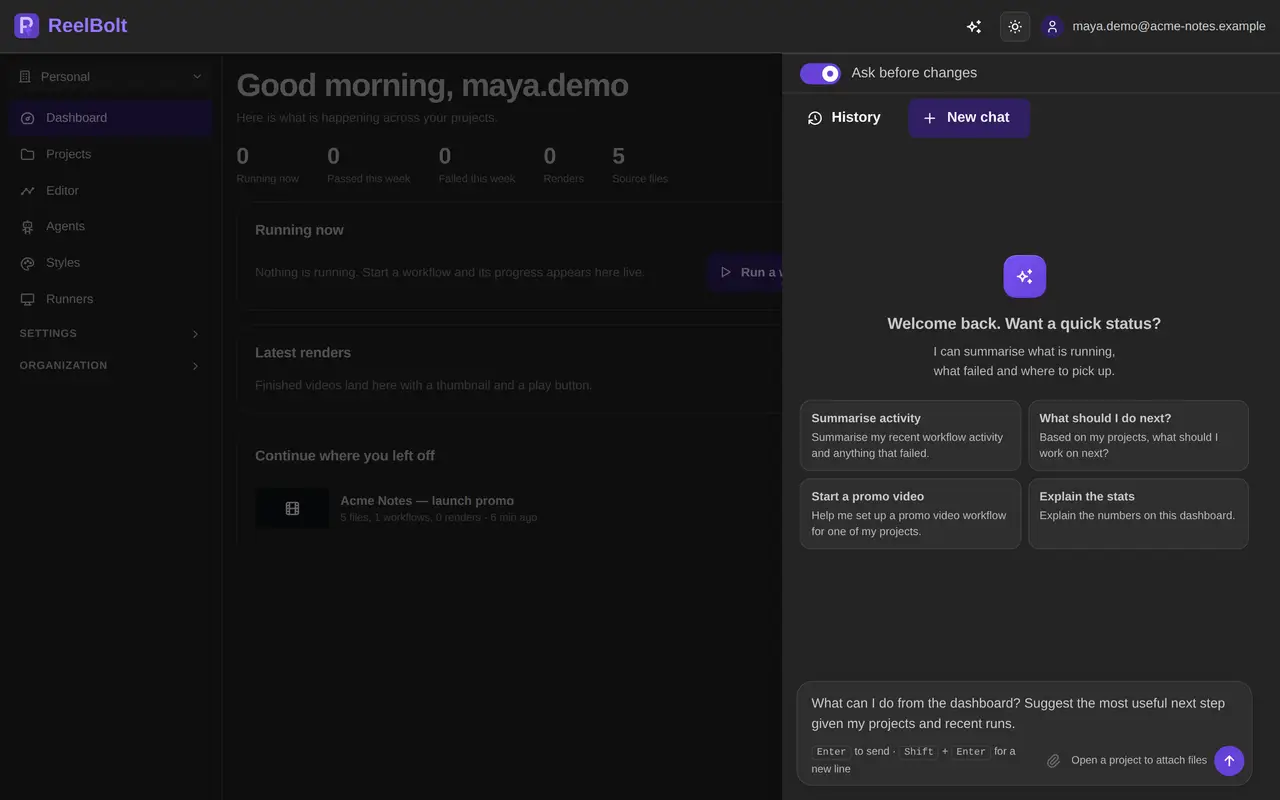
A chat assistant sits on every page of the dashboard and knows what you are looking at. It answers questions about your projects, workflows and runs, edits pictures, and starts runs with the style, shape and resolution you ask for.
- "Why did my last run fail?" answered from the actual run
- Each change appears as an approval card with the exact edit and its cost, and waits for your yes; auto mode is there if you want it
- Saved threads, so you can pick up a conversation later
- Connect Claude Code or another MCP client to your workspace and it can do what the assistant here does; there, your own client asks you before a step that changes something or spends credits
- It can’t manage users, see other people’s projects or change admin settings
Lookups are free. Chat is free up to your plan’s monthly assistant allowance, shared with Claude Code; past that it uses credits. Runs, paid picture tools, designed graphics and generated video use credits as usual.
The size and shape each channel needs
Choose the resolution and shape when you start a run. Resolution is measured on the short side of the frame, so a vertical video and a landscape one are treated the same way.
- Up to 4K on Pro and Team; each plan’s limit is on the pricing page
- Landscape, vertical, square, portrait or audio-only
- Loudness targets for the platforms you publish on
- Higher resolution uses more render credits and lower uses fewer, and the estimate shows it before you start
Part 5 of 5
Team, files and control
One workspace the whole team shares
Projects, footage, workflows and run history belong to the workspace, not to one person’s account, so the video doesn’t leave with someone who moves on. Invite the people who need it, with a role that fits what they should do.
- Shared projects, footage and run history
- Roles for owners, admins, members and the people who handle billing
- Invitations to bring people in, without sharing a password
- A credit pool the whole workspace draws from, with an estimate before every run
Bring your files from where they already live
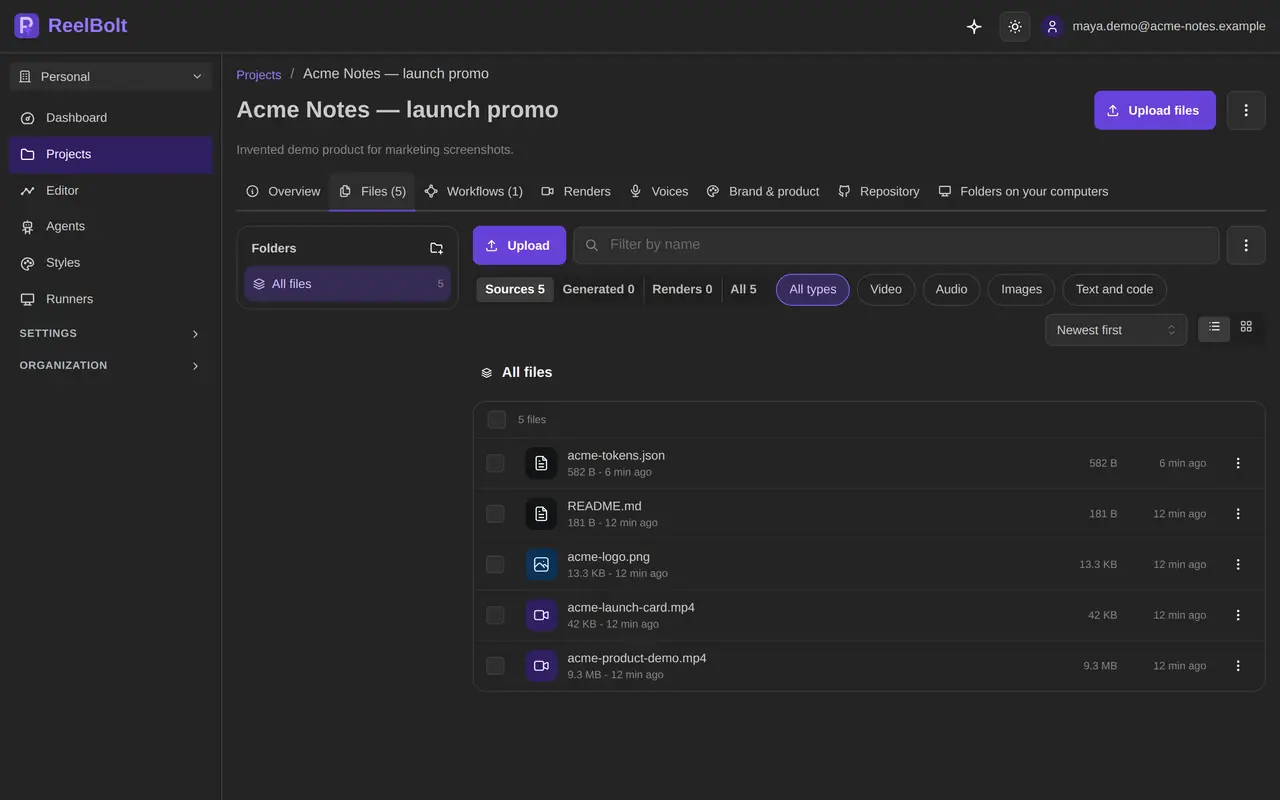
Connect the places your team already keeps its files, and ReelBolt keeps the project up to date. Your files are never deleted automatically.
- Google Drive, OneDrive and SharePoint, and Dropbox: view-only, synced in the background or when you press Sync now
- A folder on your computer, including iCloud Drive, OneDrive or Dropbox folders, synced one way and read-only from a paired computer. The desktop app download has not been released yet.
- GitHub: pick a repo, a branch and the files you need, and new pushes update the project
- Nothing is ever written back to your drives or folders
Storage depends on your plan, from 1 GB on Trial up to 100 GB shared on Team. See pricing.
Render on a machine you own
Pair a Windows or Linux machine with your workspace and it takes on the rendering and media work. Work done there costs no credits, while model calls and billing stay on ReelBolt.
- Rendering and media work on your own hardware, at no credit cost
- Owners and admins approve a paired machine and can revoke it at any time
- Every run shows where it ran
- The self-serve download has not been released yet; until a machine is paired, runs use ReelBolt’s capacity
Your AI provider, your models, your data
ReelBolt does not lock you into one AI vendor. Connect your own provider account and choose which model each agent uses, or keep the leading AI models your workspace comes with.
- Bring your own AI provider account on Creator, Pro, Team and Enterprise
- Pick a different model for each agent, or one for everything
- Usage on your own provider costs no ReelBolt credits; you pay the provider directly
- Search inside your project files by meaning, not just by name
- Self-hosting license on Enterprise, to run the whole platform inside your own infrastructure
Everything the platform does is written up in the documentation, a plain-language user guide. More on the thinking behind it on the about page.