Guides
Your first video in one sitting: from raw clips to a finished cut
Sign up, answer two questions, drop in your clips, say what the video is for and press Run. What to expect from a first ReelBolt video, limits included.
· 9 min read
ReelBolt 0.3.1-alpha — public alpha. Expect rough edges; things may change. Tell us what’s wrong
We collect telemetry to see how the alpha is going. We also record product-health signals (a failed tool call, a refused request, a failed workflow step, or a chat that ended on an error) as metadata only, so we can see when the alpha is struggling. Each is linked to your account and workspace, and so to your email address; it is not anonymous. It carries no message content. Privacy policy
Guides
Drop in the clips from your week, say what the video is, and get a reviewed first cut. Then add subtitles, shapes, a cover and post text. Limits included.
Published · 10 min read
You film all week. Then the weekend goes to a timeline: finding the good take, cutting the pauses, typing captions, exporting one file per platform. You did not start this to become a video editor.
This guide shows another way to split the work. You bring the clips and say what the video is. In ReelBolt, an AI editor makes the first cut and an AI reviewer checks it before you see it. You react to a cut instead of facing a blank timeline. Then you add what a post needs: subtitles, the shape each channel wants, a cover and the post text. Where ReelBolt stops, this guide says so.
Open a project and drag your clips anywhere onto the project page, or press Upload files. They show up on the Files tab, under Sources, once the upload is done.
The highlight edit works on 1 to 20 clips, and one clip can run up to an hour. Choose the clips for one video, not the whole camera roll. On the trial, the limit you meet first is the storage allowance, which the pricing page lists, and any editor does better work when every clip belongs to the same story.
What you filmed matters more than how much. A week of different shots gives the editor real choices, and a single unbroken take leaves it nothing to do but trim. If you are still planning the shoot, the five-clip shot list is a short way to cover a story with a phone.
On the project’s Apps tab, under Start from a recipe, pick Highlight edit from footage. Its page asks which clips to use, what language is spoken in them, how long the video should be (30, 60 or 90 seconds, as a target and not a guarantee), which shape you want (step 6 has more on that) and for your notes. Your first video in one sitting goes through each field.
The notes are where you say what the video is. “A video about my trip” is a topic. “Three days in Lisbon, for people planning a first visit. Keep the tram ride and the market” is a brief an editor can cut to. If a moment must stay in, name it. The editor removes what looks like dead air, and a quiet shot you love can look like dead air.
Two more settings are on the page: a style, for the pace and the mood, and a Captions switch that starts off. A setting always beats the notes, so do not ask for 90 seconds in the notes with the length set to 30. Run settings explains each one.
When the page shows a green Ready line, nothing is missing. Look at the credit figure on the Run button, then press it.
ReelBolt reads the clips for pauses, shot changes and words, an AI editor picks what stays, and the cuts are made between spoken words wherever the speech could be read. A reviewer then scores the cut and can send it back to the editor, up to three times, before you see it. Your first video in one sitting lists those steps one by one.
That is the team in this recipe: an editor that chooses and a reviewer that checks. A second recipe, Highlight edit, decided by an editing team, has three AI editors discuss the cut before a lead editor decides. It uses more credits and takes longer, and it is part of the Pro plan and the plans above it, not the free trial.
How long a run takes: minutes for a small job, sometimes half an hour for a big one. Nothing needs you while it works. Close the page if you like, find the run on the dashboard later, and go plan the next video.
A finished run puts the video on the project’s Renders tab with a Final mark. The edit is also added to the project’s files, where a later recipe can pick it as its video. If a yellow box sits above the run or under the player, something did not turn out as asked, so read it before you share anything.
Watch it once the way a viewer would, without stopping. Then watch it again and write down what you would change. This is the part that needs you. The editor did not live your week, so it can keep a take you find flat or drop a pause that was the point. A first cut is something to disagree with, and that is easier work than a blank timeline.
There are two ways, and which one fits depends on when you decide.
Before the run. Switch on Captions on the highlight edit’s page. The words spoken in your clips are shown on screen in the finished cut. If you already know the video needs captions, this is the short path: one run, one video.
After the run. The Subtitles for your video recipe takes a finished video and gives you a new one with the subtitles burned in, plus the same subtitles as SRT and VTT files with the same timing. Nothing else about the video changes. Its Caption look setting offers plain, word by word, or one big word. A second recipe, Subtitles in another language, translates what is said and keeps the original timing. Both use credits, and the price shows before you run.
Two limits. Subtitles come from the speech in the video, so a sentence that was not recognized cannot be subtitled, and you should read them before you post. And the run page has no download button for the SRT and VTT files yet. Until it has one, the editor in step 9 is the way to get subtitle files in the app: its subtitles tab makes captions from a transcript, which uses credits, and downloads them as SRT or WebVTT. The subtitles recipe page describes the recipe itself.
Every recipe that makes a video asks for a shape before it runs: vertical (9:16), square (1:1), landscape (16:9) or portrait (4:5). Pick the one your main channel wants.
Here is the limit to know before you plan a week around it: a finished video cannot be re-cut to another shape yet. A second shape means running the recipe again with the other shape chosen. That run uses credits again, and it is a fresh edit, so its cuts may not match the first version exactly.
The editor’s export screen can also render the cut you have open in another format. When the format does not match the timeline, it tells you the picture will be cropped or get bars. That is the same cut in a different frame, not an edit made for that frame.
The practical advice is to film in the shape you post most. Footage shot sideways and delivered vertical has to be fitted into the new frame, so part of the picture is lost or shown smaller.
The Thumbnail and cover text recipe makes a cover picture from one video in your project. For Which frame, choose Pick the best one, or Use a time I choose and set the time. Cover text is optional and can be up to 90 characters. The result is one picture saved in the project.
This recipe uses very few credits. Your video is looked at inside ReelBolt and nothing is sent to an outside provider. If the picture is not the frame you wanted, choose the time yourself and run it again.
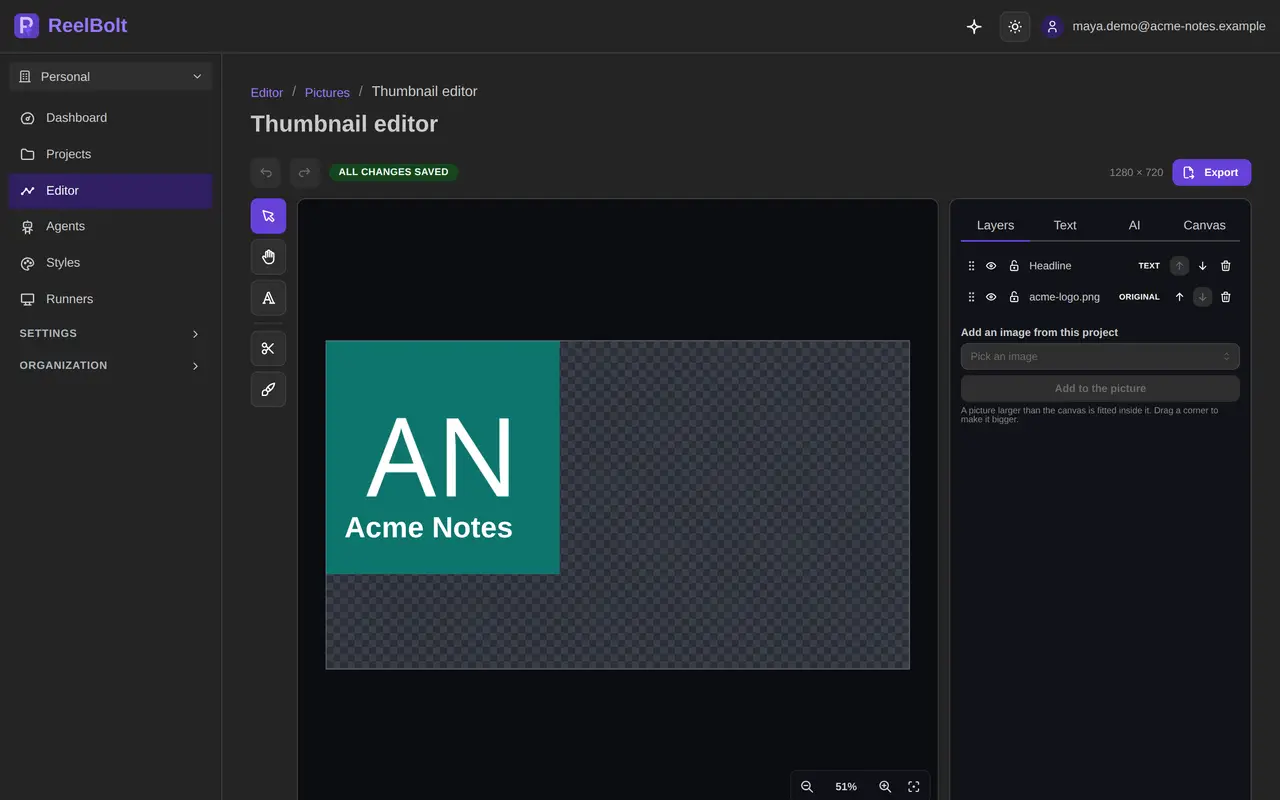
To go further, open the picture in the picture editor and work in layers: move the title, add a second line, cut out a subject. The picture editor is part of the Early preview, and its AI tools use credits each time, with the price shown first.
When the video is finished, ask the assistant for the text you post with it, and name the platforms: “write the post text for TikTok and Instagram Reels”. It covers TikTok, Instagram Reels, YouTube Shorts, LinkedIn and X. You get one version per platform, cut to the length that platform allows, with a title where the platform has one, the body and the hashtags.
What to know before you rely on it:
The post text page has the details.
You stay in charge of the cut. Open Editor in the left menu, choose your project, and on the Videos tab find your video under From your workflow runs. Edit opens it as a timeline, with the clips of the cut on their tracks.

There you can trim a cut, move or split a clip, add a title, undo a change and go back to an earlier version. Your changes are saved as you go. The editor is labeled Early preview: it is still being finished, and some tools may change. It has a phone layout, but some tools need a larger screen.
The editor changes the edit, not the finished file. To get a new video, render it from the editor’s export screen, which shows the credits a render is expected to use before you start.
If the change is a setting and not a cut, there is a second route: Change one thing and re-run, on the recipe’s page next to a finished video. Change the length, your notes or the captions switch, check the price, and get a new run. Your first video is kept. The shape, the resolution and the style cannot be changed there.
One thing that does not work on a footage edit: typing a change in plain words and getting a new version. That box is for animated videos. Request changes lists what can be changed where.
ReelBolt has no built-in music library. You bring the track, and you need the rights to use it. There are two places it goes:
Generating a track from a description is part of the Creator plan and the plans above it. It is not in the free trial. The music recipe page covers all of this.
No card is required. A trial workspace starts with 100 one-time credits. When you verify your email, your account also receives a one-time grant of 750 credits, so your first video is on us. That grant is given once per person and runs out 30 days after you get it.
The recipes in the steps above are part of the trial, except where a step names a paid plan. Trial exports are 720p with a watermark. Each run shows the credits it is expected to use before you start, and the cover recipe uses none. If a step fails because of a problem on our side, the credits held for it are refunded. Paid plans remove the watermark and export at higher resolutions. The pricing page lists what each plan includes.
If you have not made a video in ReelBolt yet, Your first video in one sitting walks the sign-up and the first run screen by screen. The highlight edit recipe page has the details of what is removed and what to check after a run, and Choose a recipe lists everything else you can make from the same clips.
Next weekend, it could be a cut you are fixing, not a timeline you are filling.
An AI editor chooses which parts of your clips to keep and leaves out dead air, false starts and retakes. A reviewer then scores the result, and a low score sends it back for another pass. It is a first cut, not a final one. Say in the notes what must stay, and change anything you disagree with in the editor.
Yes, from a track you upload. There is no built-in music library. The Footage edit with background music recipe mixes your track under the voices, and the editor can move your cuts onto the beat of a music clip. Make sure you have the rights to the track.
ReelBolt is built for short videos, about 90 seconds or less. The highlight edit offers 30, 60 or 90 seconds as a target length. It will not edit a long-form video for you, but it can make the short one that goes with it.
You pick one shape before each run: vertical, square, landscape or portrait. A finished video cannot be re-cut to another shape yet, so each extra shape is another run, which uses credits again and can come out with slightly different cuts.
Yes. Trial exports are 720p with a watermark. Paid plans export without the watermark and at higher resolutions. The pricing page lists what each plan includes.
No. You download the file and post it yourself. ReelBolt can write the text that goes with the post for TikTok, Instagram Reels, YouTube Shorts, LinkedIn or X, but it does not publish anything.
See it on your footage
Drop in your clips and say what the video is for. An AI video team makes the first cut, you change what you want, and every paid step shows its estimate first.
Guides
Sign up, answer two questions, drop in your clips, say what the video is for and press Run. What to expect from a first ReelBolt video, limits included.
· 9 min read
Guides
Only an idea and no footage yet? Film five ten-second clips on your phone: the opening, the person, the thing, the detail and the close. Then turn them into a video.
· 8 min read
Guides
For coaches, teachers and course makers: cut a recorded lesson into short captioned clips, add translated subtitles or a dub, and know the limits before you start.
· 13 min read