Create a project and upload files
You will make a project, which is the folder for one video, and add your material to it.
Create the project
If you answered the two questions after signing up, you already have a project called My first video. Open it from Projects and go straight to Upload your files. To make another project:
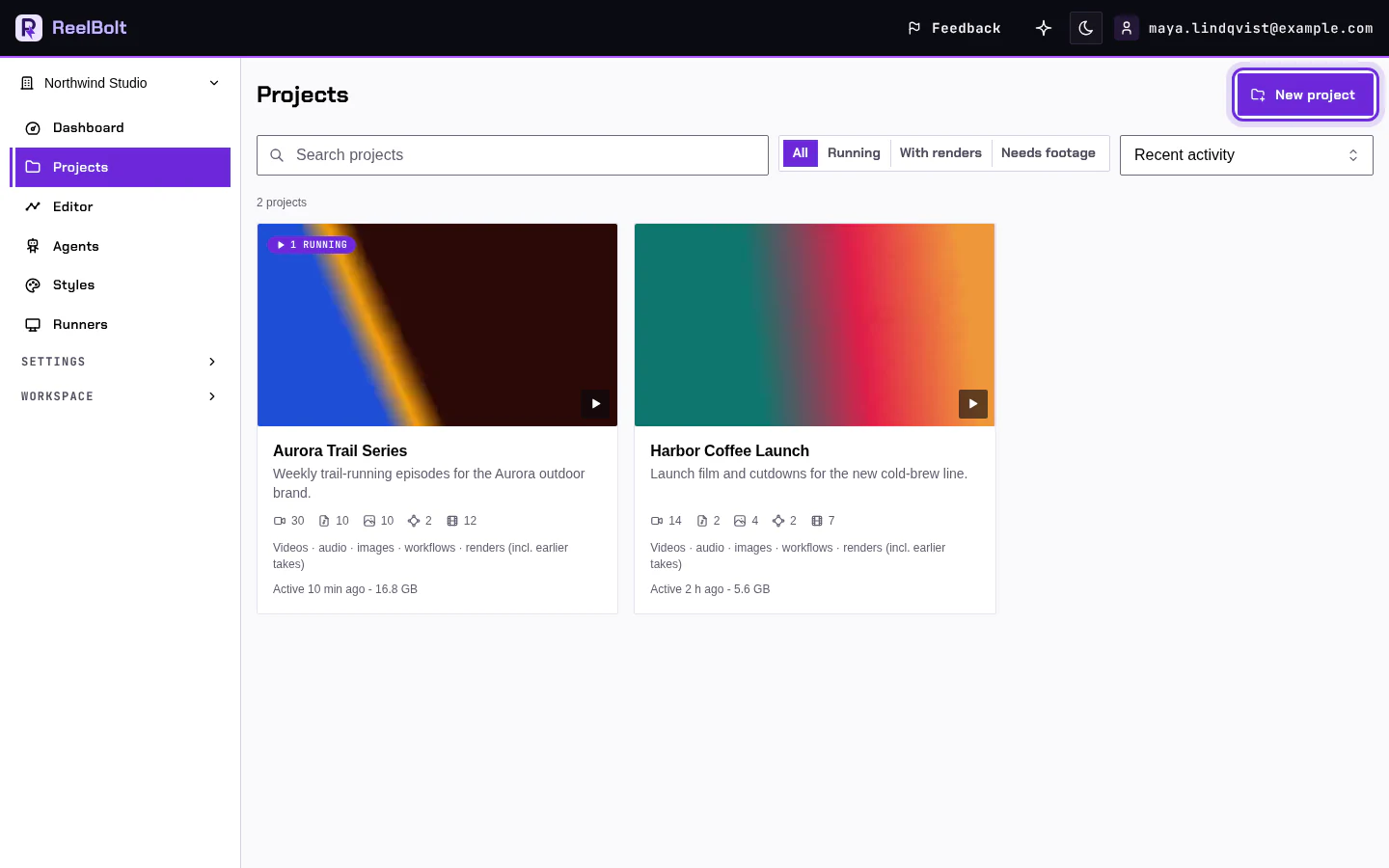
- Open Projects in the left menu.
- Click New project.
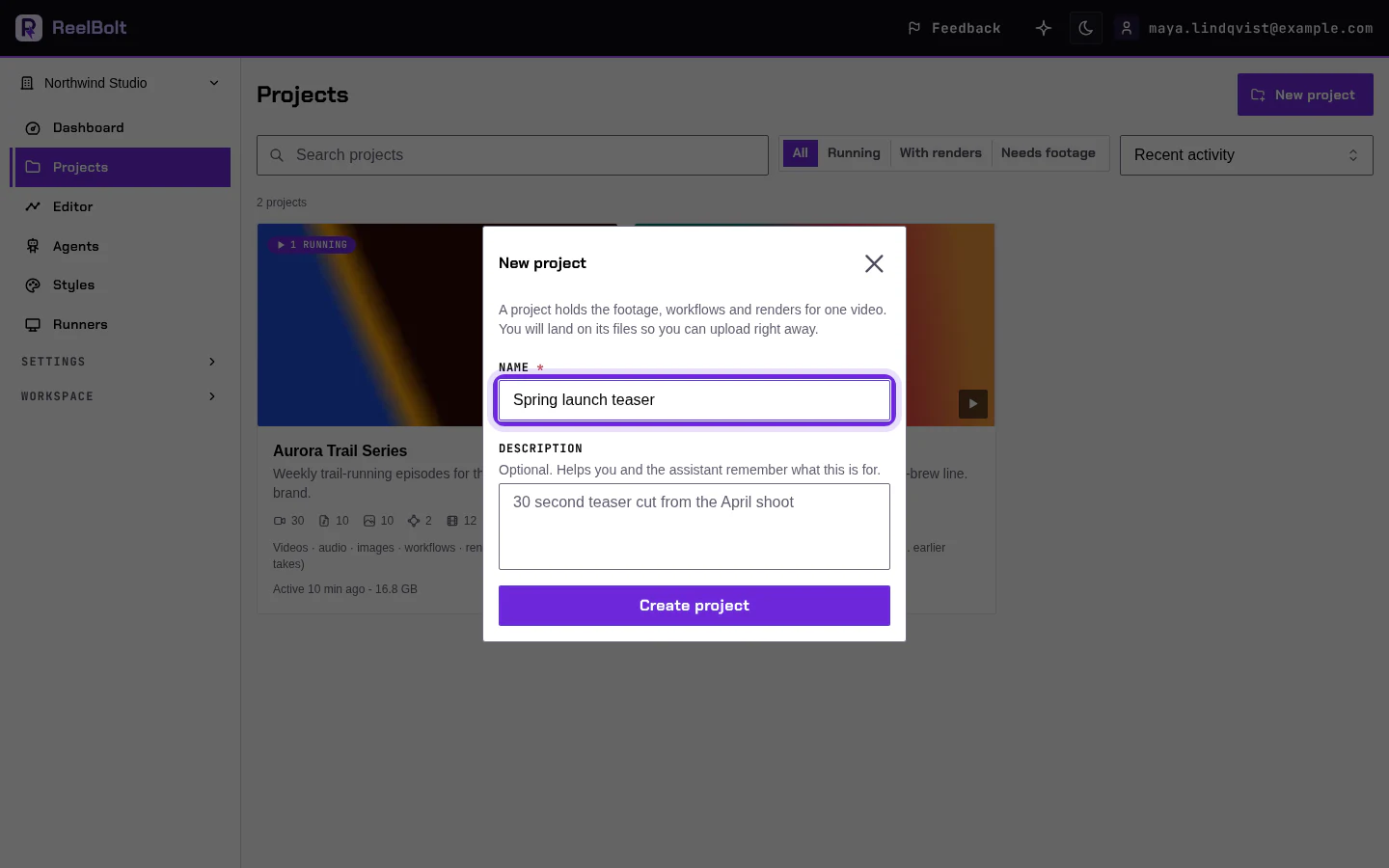
- Type a Name, for example "Spring launch teaser". A Description is optional.
- Under What is this video made from?, choose Clips I already shot or An app or website I built. This decides the first app the project gets. You can add other apps later.
- Click Create project.
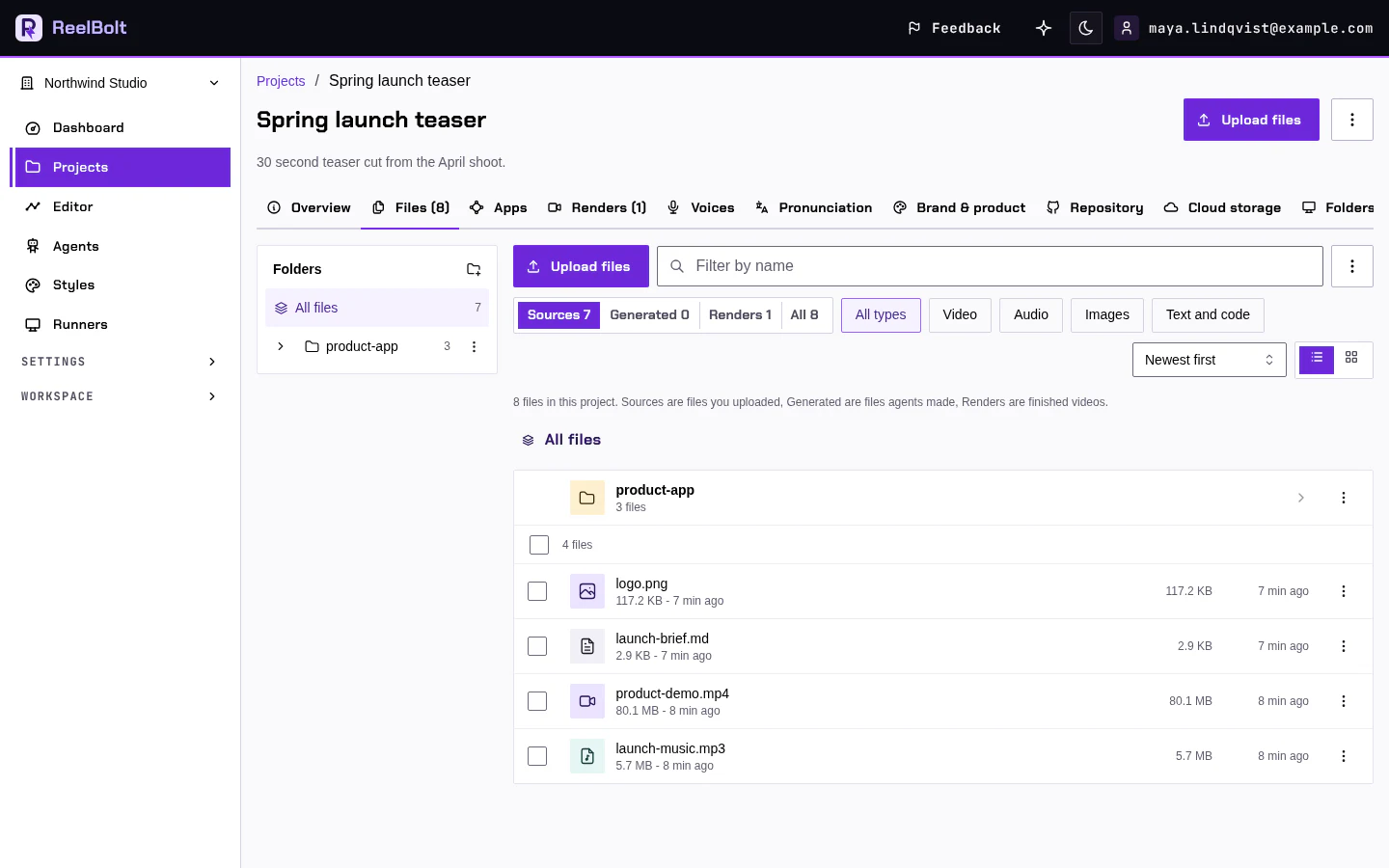
The new project opens on its Files tab.
Upload your files
- Click Upload files at the top of the project page (or use Upload on the Files tab).
- Choose files, or choose a folder. A folder keeps its structure.
- Wait for the uploads to finish.
You can also drag files or folders anywhere onto the project page.
Check your upload. Uploaded files are listed under Sources. Click a file to preview it.
You can upload your app's code as a .zip. ReelBolt unpacks it into a folder, and skips node_modules and build output. See Give ReelBolt your code.
A zip over 64 MB is not unpacked. ReelBolt stores it but cannot read it. If you choose a bigger zip, ReelBolt warns you before it uploads, and you can cancel or upload it anyway. Send your code another way instead: connect your GitHub repository, make a smaller zip without build output, dependencies and media, or upload the key folders and files directly.
Which files to upload depends on the video. For an edit, upload your clips and any music. Several different shots make a better edit than one long take. For a promo of an app or website you built, upload its source code.
Analyse videos when they are uploaded. If you upload videos for editing, you can have ReelBolt look at each new video in the background as soon as it is uploaded. It finds the scenes, the pauses and the moments where something happens, so workflows that need them start faster. Open the menu at the top of the project page, choose Edit name and description, switch on Analyse videos when they are uploaded and save. It is off by default, it applies to videos you upload from then on, and it uses no credits. Your results are the same with it on or off; only the wait changes.
- A file name is refused? A name cannot be empty, contain
/or\, or match another file in the same folder. ReelBolt tells you which. - Not sure what to upload? Open the assistant and use What should I upload? on an empty Files tab.
Go deeper
Next: Pick an app and run it.