Ask for changes
You will ask for a change to a finished video. Only the parts you name are changed, and your current video is kept.
Request a change
- Open the page of the finished run.
- Find Request changes and write what should change. Be specific about what and where. "Make the numbers in the stats section bigger" works better than "make it better".
- Optional: under Only these scenes, pick the scenes the change is about.
- Optional: under Start from, pick an earlier version.
- Check the credits shown on the panel, then click Request changes.
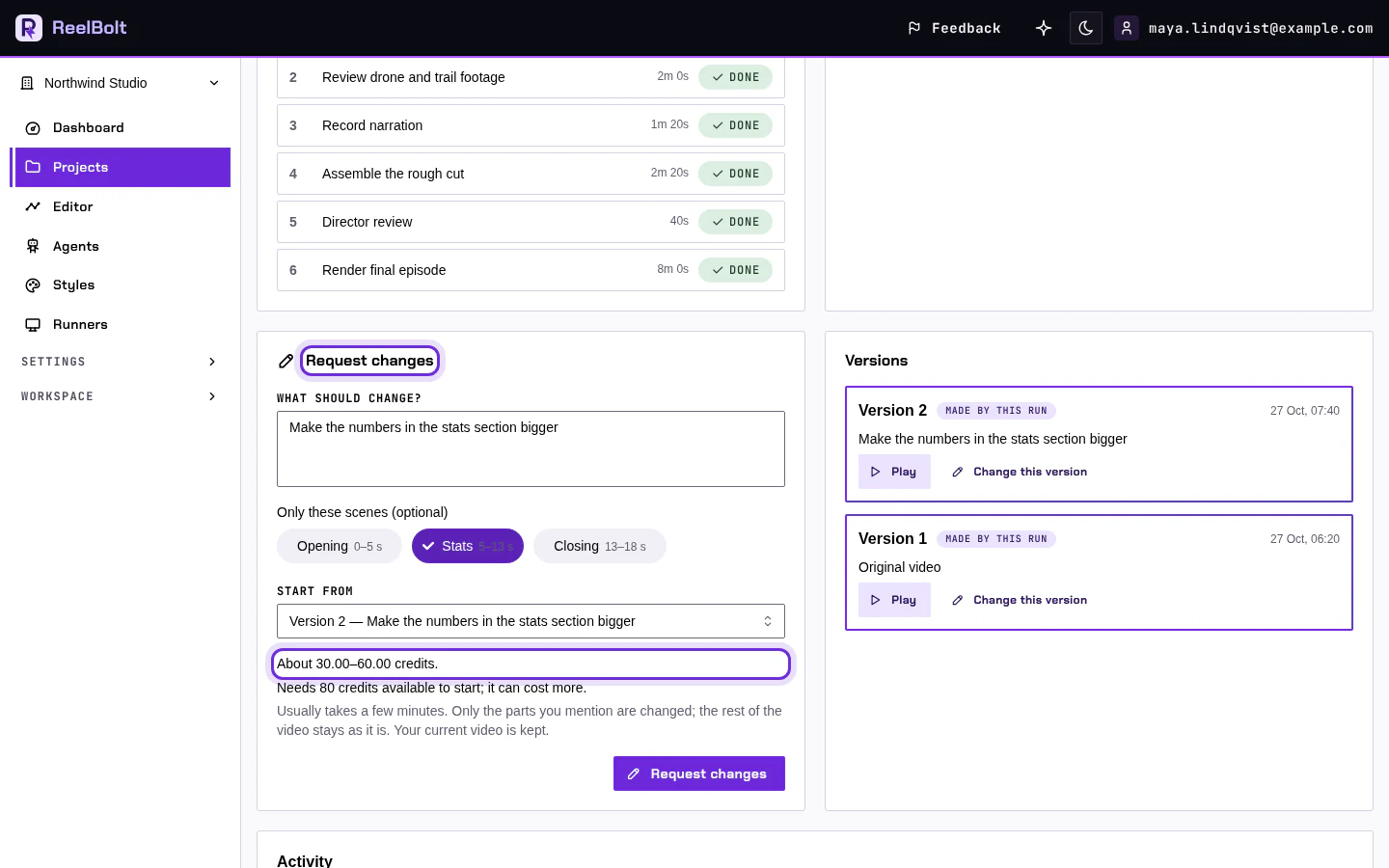
You should see a new run open. Follow it the same way as before. When it finishes, the new version appears on the Renders tab next to the old one.
If something looks different
- No Request changes panel? It shows on finished runs of animated videos only. For other videos, run the app again with a new brief, or use the editor.
- Part of your animation sits inside a longer edit? The panel lists the later steps that run again and lets you choose what happens to the edit.
Need to change several things at once, like the narration and the graphics? Add each change to a list and send them together; see Changing several things at once.
Go deeper
Next: Editor basics.