Assistant basics
You will ask the assistant a question and approve a change it suggests.
Ask a question
- Click the sparkle button in the top bar. It is called Assistant. The chat opens on the right.
- Type in the message box, for example "Why did my last run fail?" or "What should I upload?".
- Send the message and read the answer.
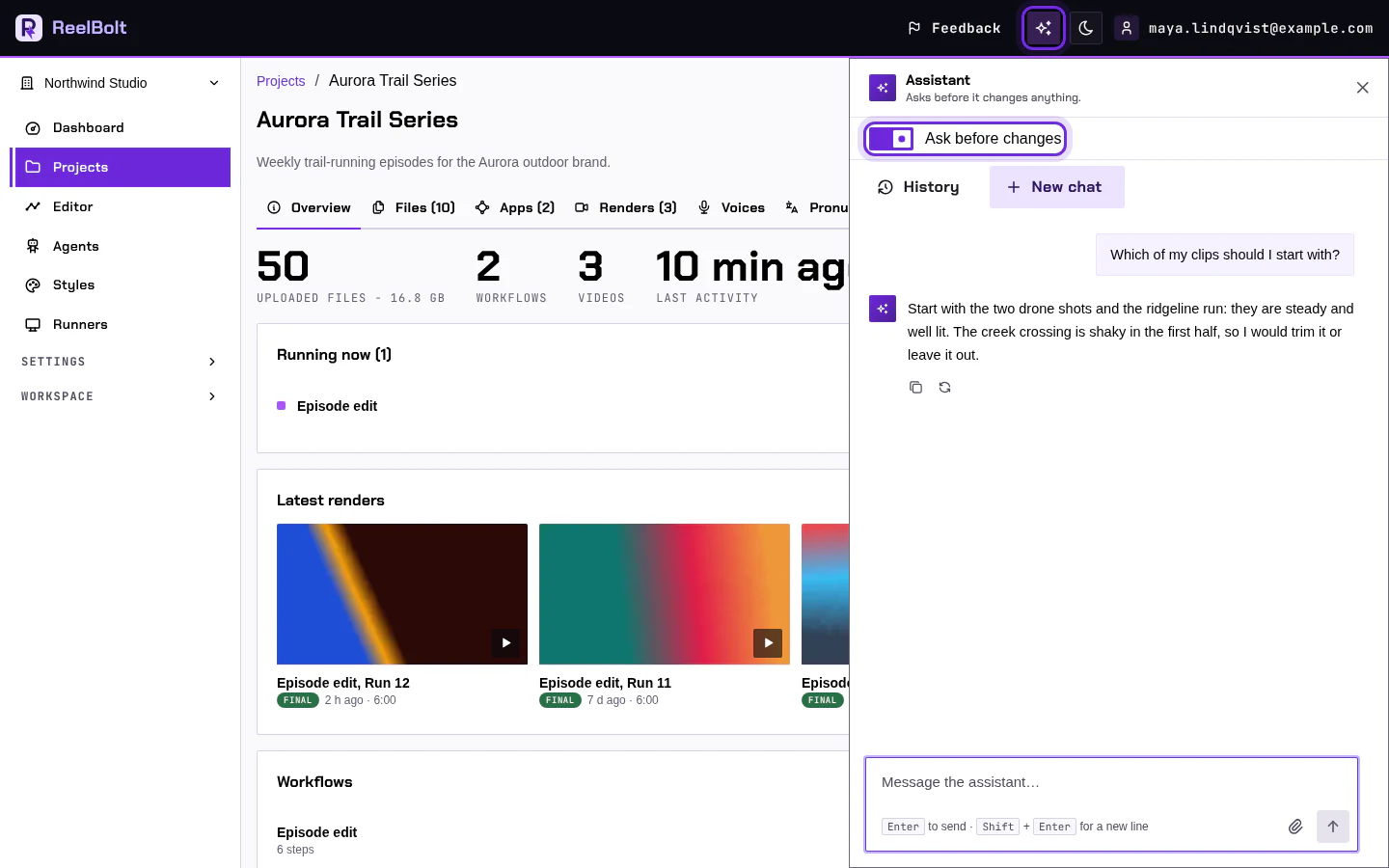
The assistant knows which page you are on. On a project page, "this project" means that project.
On a phone, the chat slides up from the bottom of the screen.
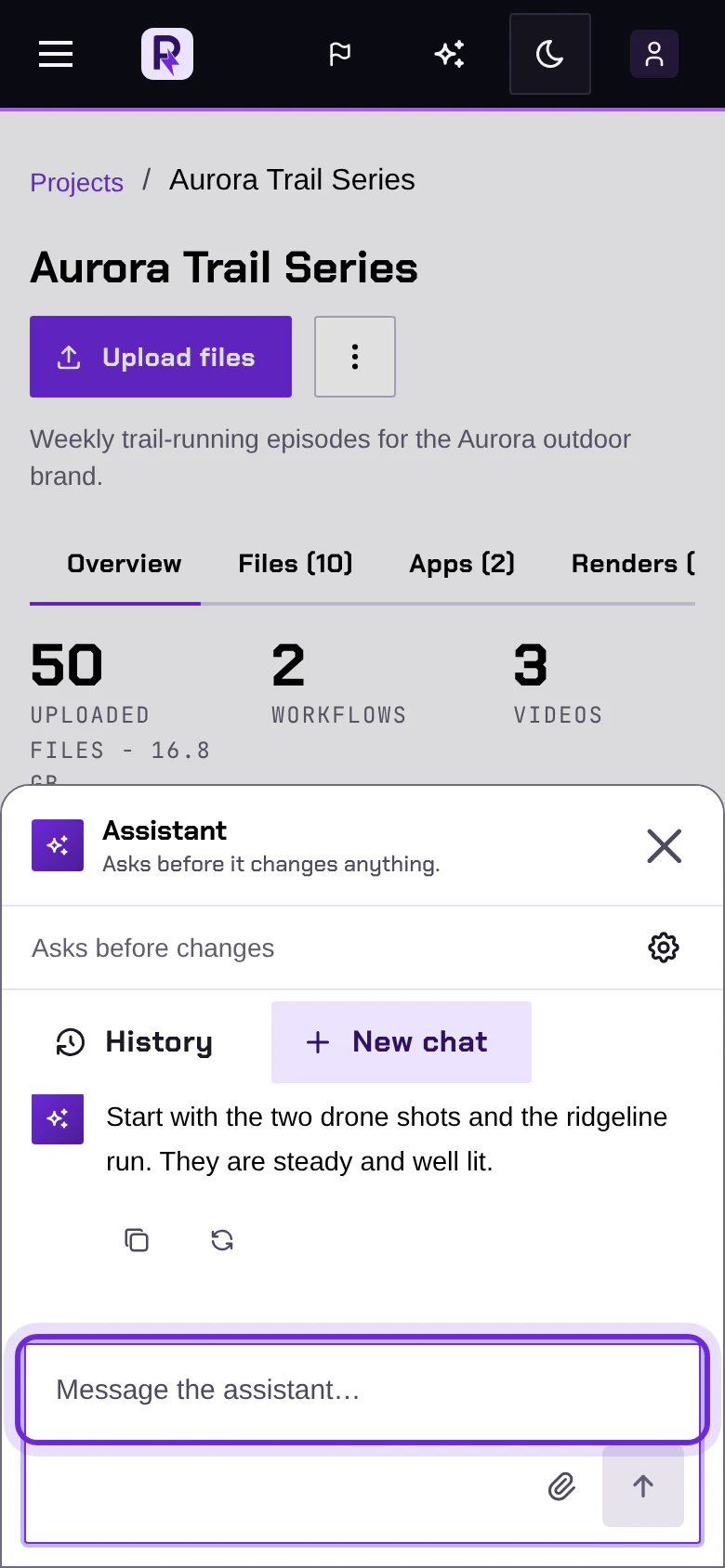
Let it make a change
- Ask for something, for example "Create a project called Spring Teaser".
- A card in the chat says what the assistant is about to do.
- Click Allow to go ahead.
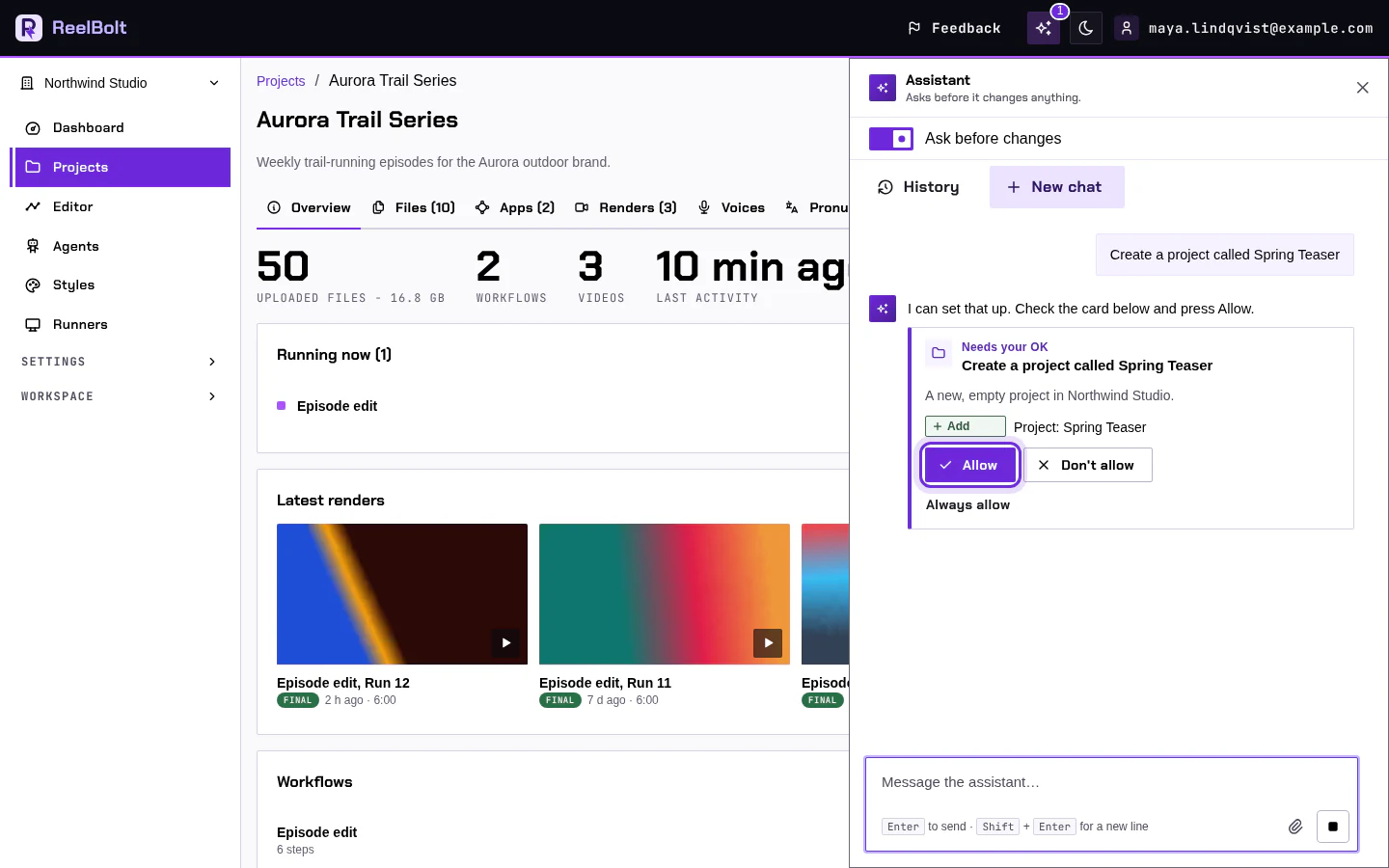
Nothing changes until you click Allow. The Ask before changes switch at the top of the panel is on by default. Leave it on until you are used to the assistant. On a phone, the panel shows this setting as Asks before changes.
If something looks different
- Several pages have shortcut buttons that open the assistant with a ready question, such as Why did my last run fail? on a project's Overview tab.
- The assistant uses credits after your plan's monthly allowance. See What the assistant costs.
Go deeper
Next: Pictures and thumbnails.