Follow progress, then download or share
You will watch your run, then get the finished video.
Watch the run
- After you start a run, ReelBolt opens its run page.
- Check the status badge. It reads Waiting to start, Working, Finished, Failed or Stopped.
- Read the line above the progress bar. It says in plain words what is happening now, for example "Writing the narration".
- Open Activity to see what has happened so far, newest first.
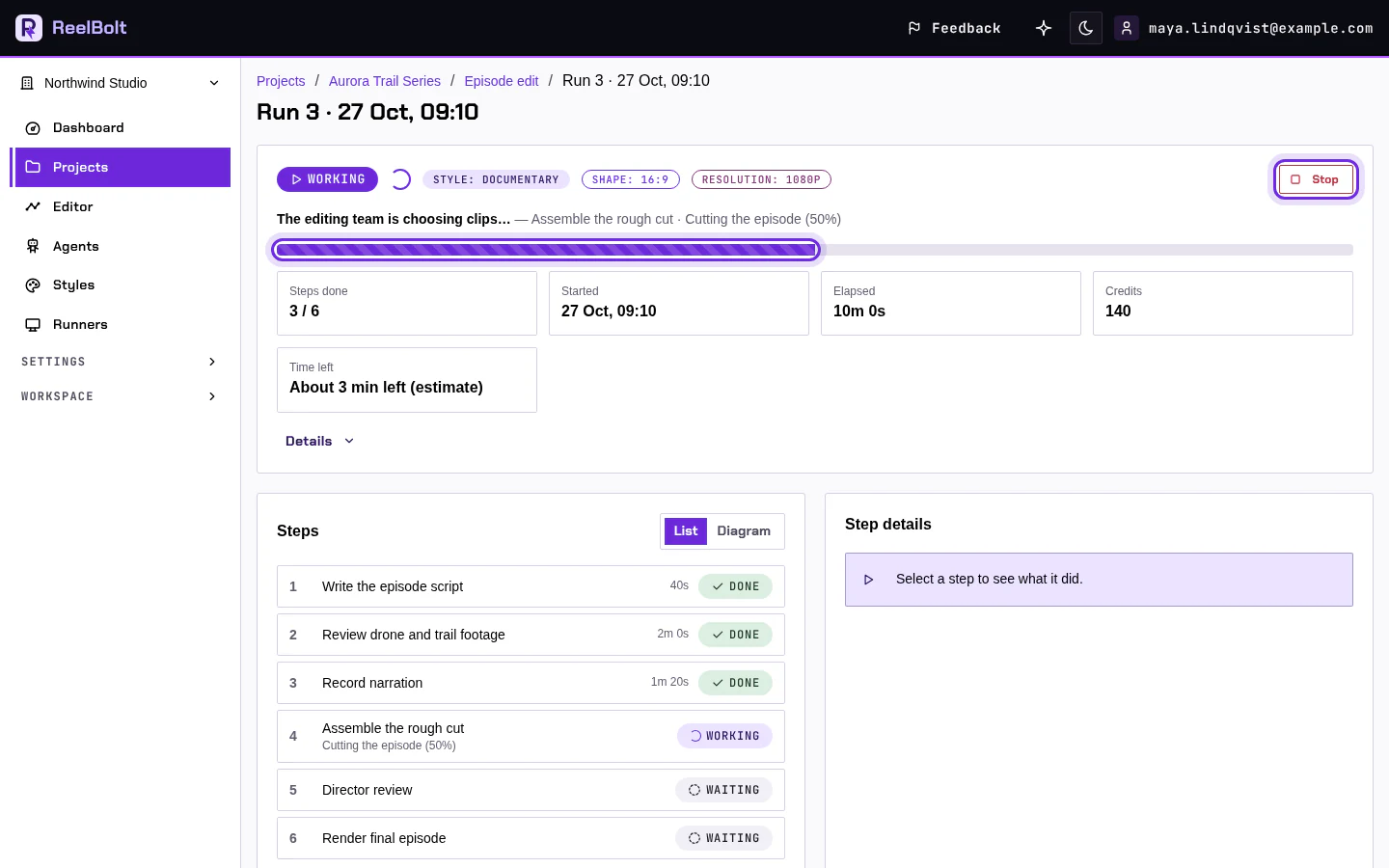
A run can take from a few minutes to much longer. You can leave the page. The run carries on, and the dashboard shows it under runs in progress. To cancel it, click Stop.
Get the video
- When the status is Finished, open your project and go to the Renders tab.
- Click the newest render marked Final to play it.
- Click Download to save the file.
- Click Share to copy a link or open your device's share sheet.
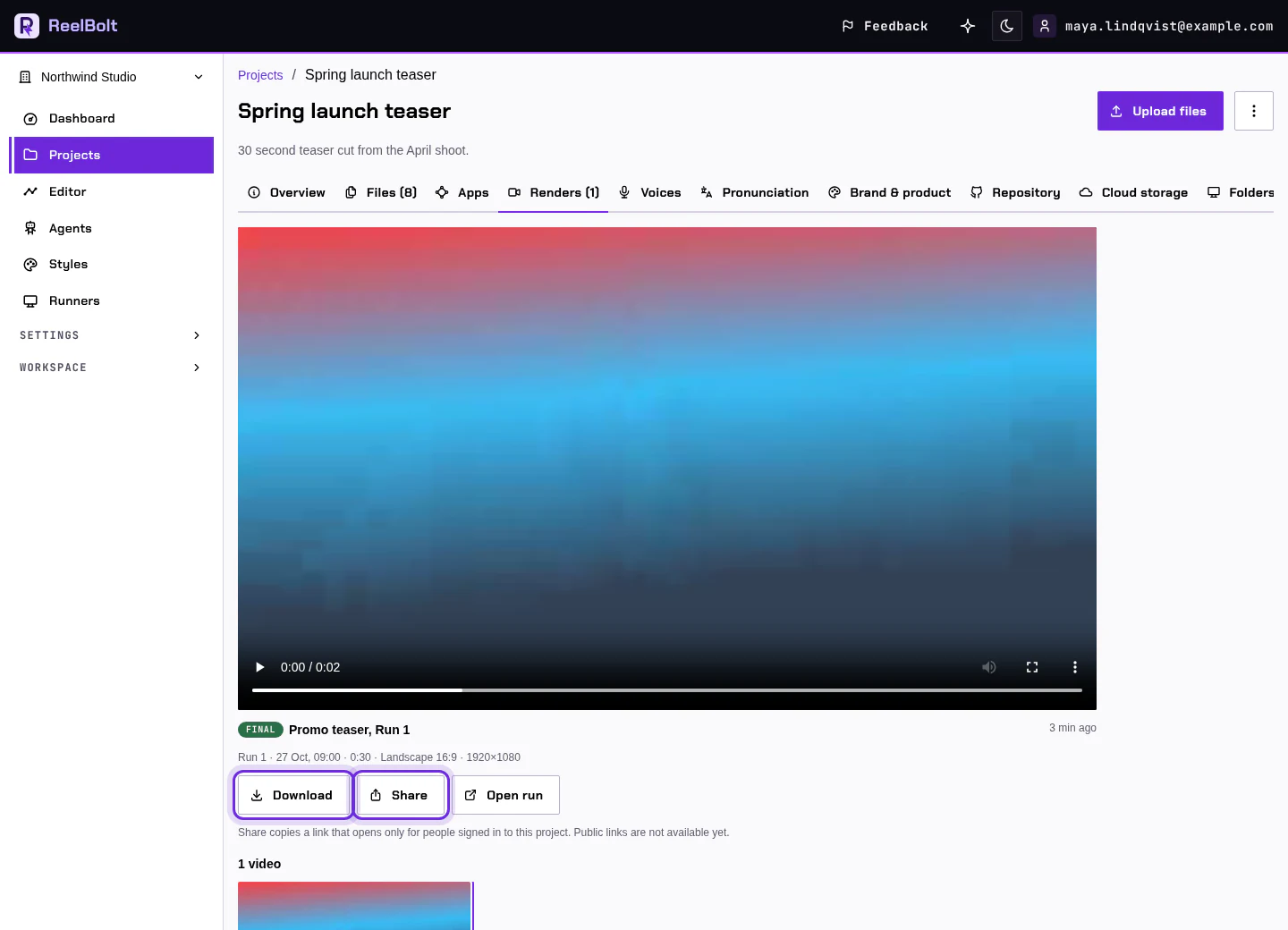
A new video can briefly show Checking your video. It appears by itself when the check is done, so you do not need to reload the page.
A yellow box at the top of the run page or under the player means something did not turn out as asked. Read it before you share the video.
If something looks different
- The share link only opens for people who are signed in to your project, so it is not for sending to a client. Use Download for that.
- The run shows Failed? Open the assistant and ask "Why did my last run fail?", or read Troubleshooting.
Go deeper
Next: Ask for changes.