Sign up and take a first look
You will create your account, sign in and find the main places in ReelBolt.
Create your account and sign in
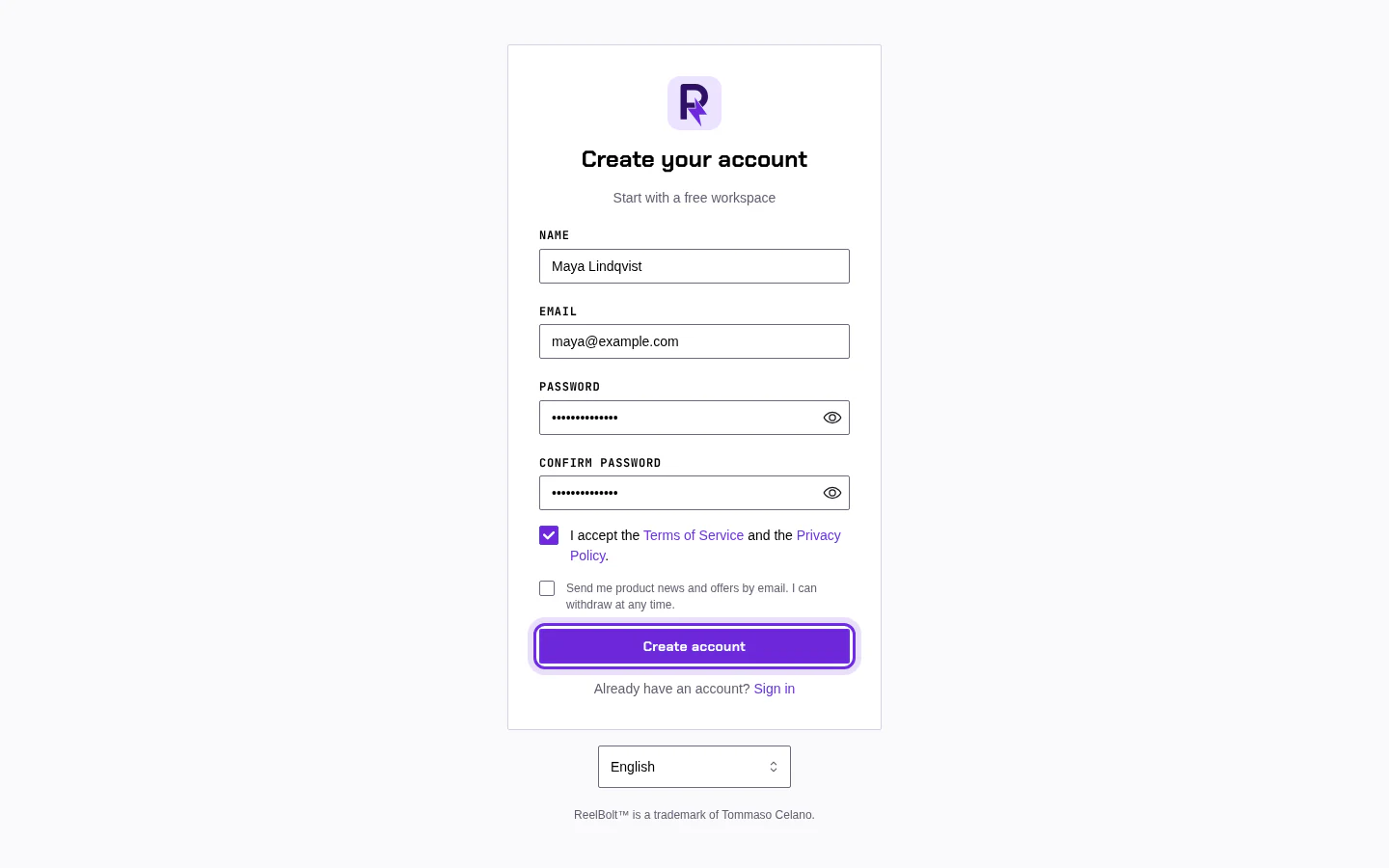
- Open the sign-up page.
- Enter your Name, Email and a Password (at least 10 characters), then type the password again in Confirm password.
- Tick the box to accept the Terms of Service and the Privacy Policy. The product-news box below it is optional. Then click Create account.
- Open the confirmation link in the email ReelBolt sends you.
- Sign in with your email and password.
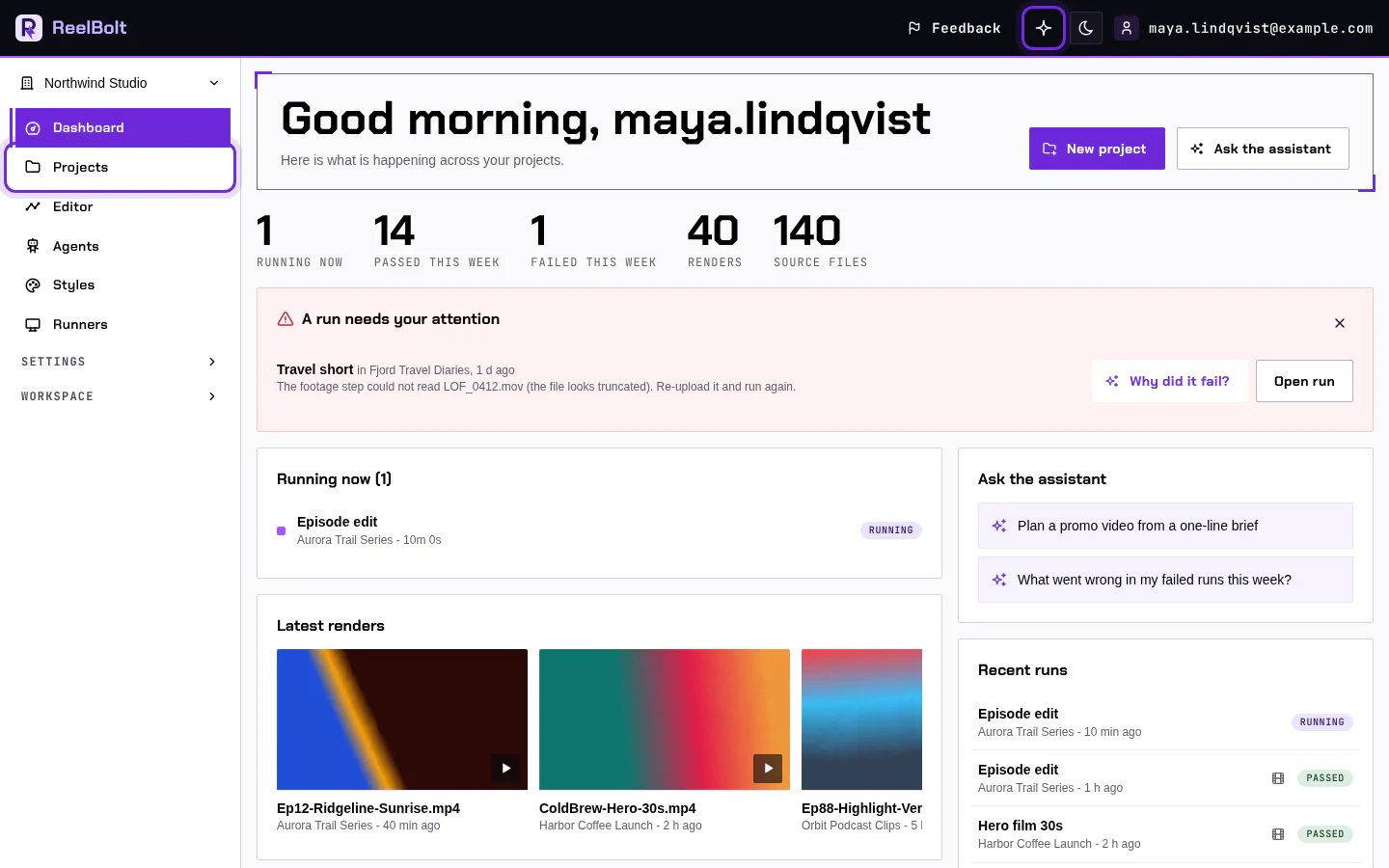
You should see the dashboard. Until you confirm your email, a yellow Confirm your email address bar stays at the top and runs that cost money are switched off. Use Resend the email on that bar if the message did not arrive.
If something looks different
- There is no sign-up page? Your ReelBolt may be run by an administrator who creates accounts. Ask them for your email and a temporary password, sign in, then choose a new password when asked.
- No email? Check your spam folder, then use Resend the email.
Find your way around
The menu on the left has the places you use every day:
- Dashboard: recent activity and runs in progress.
- Projects: one project for each video you make.
- Editor: open a video as a timeline, or work on a picture (Early preview).
- Agents, Styles and Runners: the AI workers, the editing looks, and any computers you have connected.
The sparkle button in the top bar opens the assistant. Settings at the bottom of the menu holds your account, your usage and your plan.
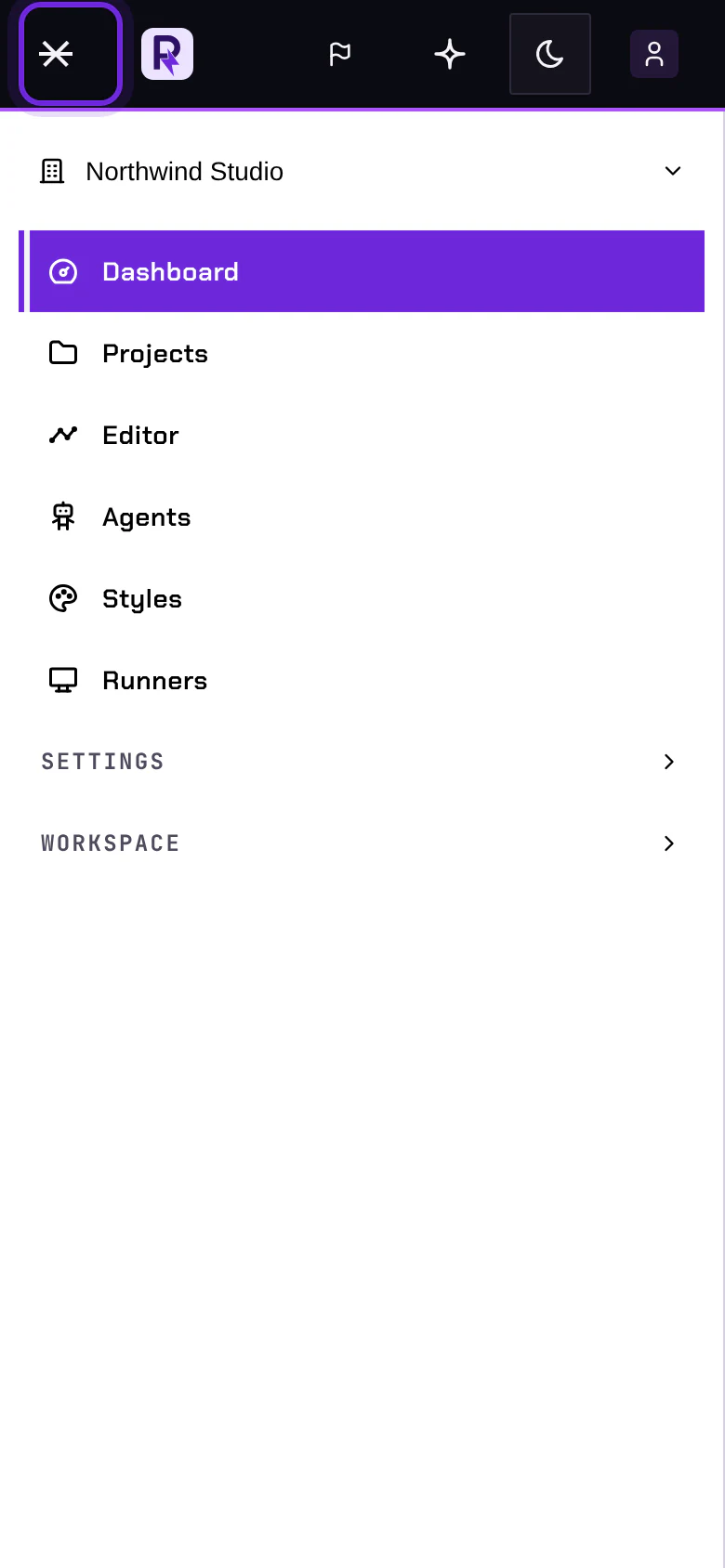
On a phone, the menu is behind the menu button in the top bar. Tap it, pick a place, and the menu closes.
If something looks different
Some entries only show for some people. Workspace appears for workspace owners and admins, and Platform only for administrators of the whole installation.