Pick an app and run it
You will choose a ready-made app for your project and start it. The app makes the video.
Choose an app
- Open your project and go to its Apps tab.
- Under Start from a recipe, pick the app that matches what you want to make. A recipe sets up a ready-made app in your project and opens it.
- If you already set one up, it is listed under Your apps. Click Open.
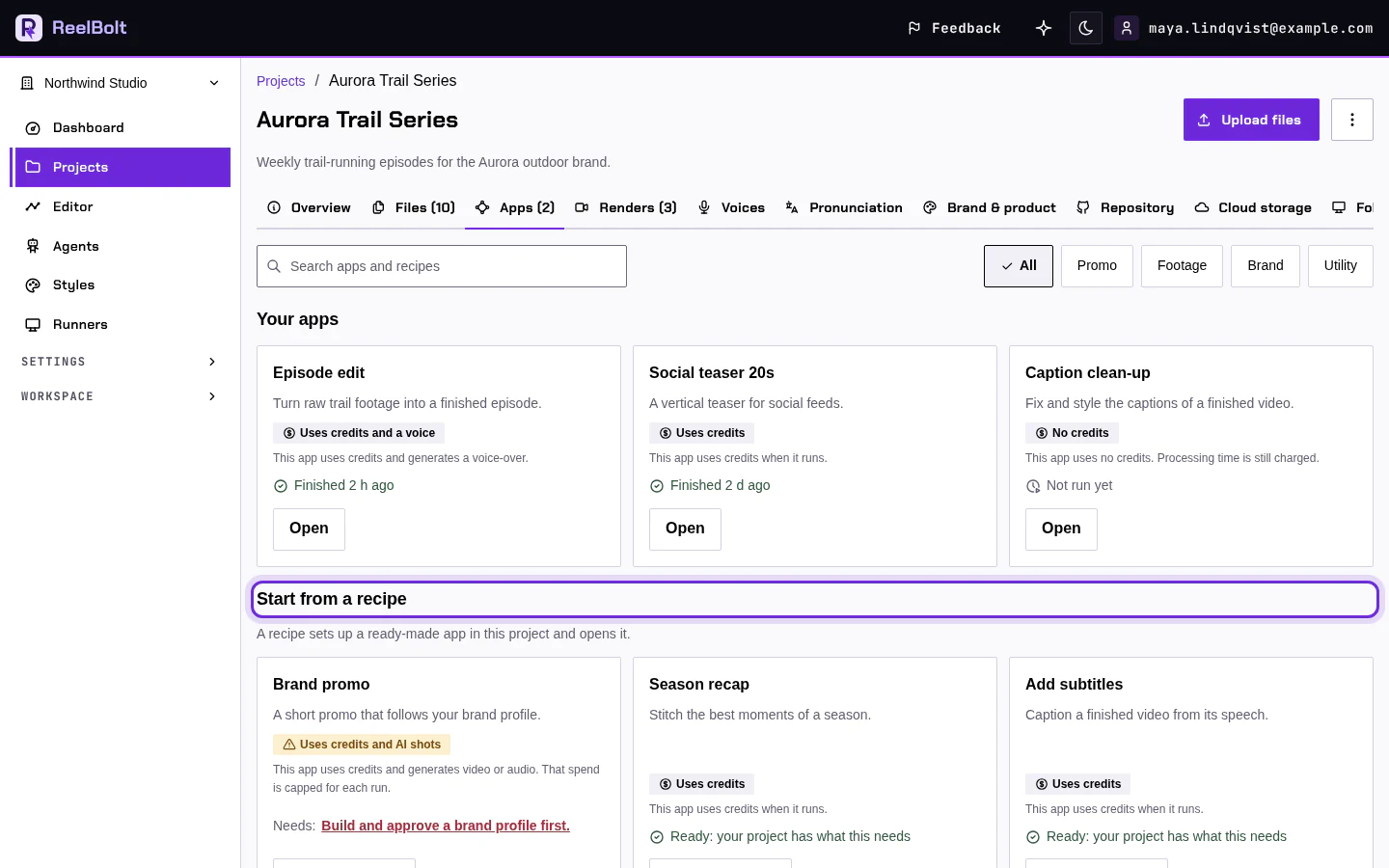
Every new project already has a starter app that makes a promo video from your code.
Check and run
- Read what the app asks for. Fill in the boxes you see, for example what the video is about, how long it should be and the format.
- Look for the green Ready line, which says everything the app needs is in place. If a line says something is missing, fix that first, for example by uploading a file.
- Check the price on the Run button. This is the number of credits the run is expected to use.
- Click Run. If a confirmation box opens, read it, write your brief if it asks for one, and click Start run.
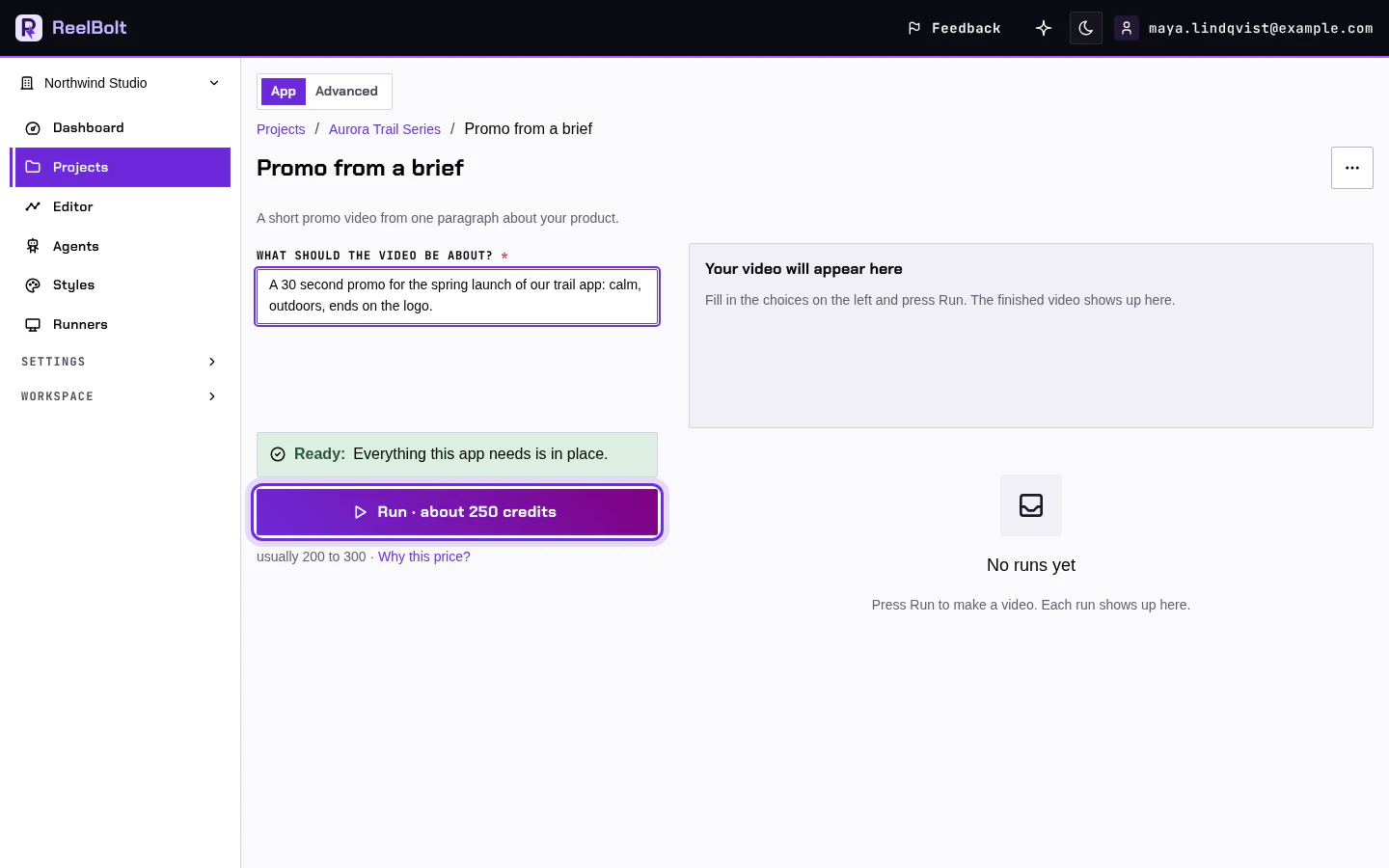
You should see the run start and a message that your video is being made.
If something looks different
- Your project has a Workflows tab instead of Apps? Open your workflow there and click Run. The steps after that are the same.
- Run is greyed out? The line below it says why and what fixes it, such as an unconfirmed email or too few credits.
- Not sure which app to choose? Read Choose a recipe.